
SnapText
About
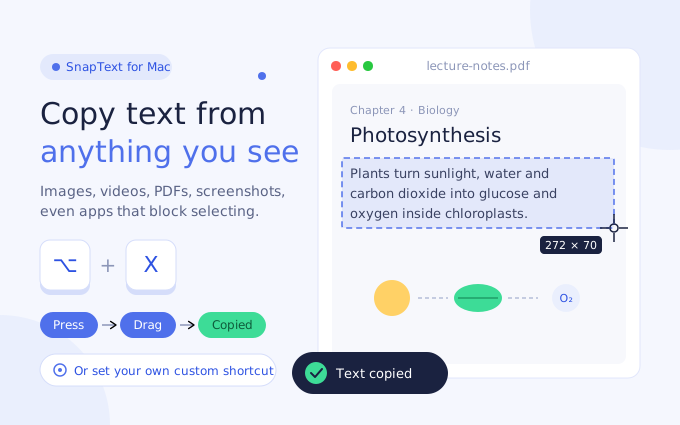
Some text just can't be selected. It's inside an image, a paused video, a scanned PDF or an app that blocks copying, so you end up typing it out by hand. SnapText fixes that. Press the shortcut, drag a box over any part of the screen, and the text is on your clipboard, ready to paste.
Text recognition happens entirely on your Mac using Apple's built-in Vision framework. There is no account, no cloud and no network access. Nothing you capture ever leaves your computer.
SnapText is not on the Mac App Store yet, so download it directly from this page. Open the .dmg, drag SnapText into Applications and open it. If macOS says the app can't be opened, go to System Settings → Privacy & Security and click "Open Anyway".
I was tired of retyping text from screenshots, video tutorials and error dialogs that wouldn't let me select anything. So I built a small tool that lets me grab text from anywhere on the screen with one shortcut, and now I use it every day.
Features
One shortcut — Press ⌥ + x in any app, select an area and the text is copied.
Copy from anywhere — Images, videos, PDFs, screenshots, websites and apps that block selection.
Paste anywhere — Text goes straight to your clipboard, so ⌘V works in any app.
Keeps the layout — Line breaks and paragraphs are preserved, so pasted text stays readable.
Links and numbers too — Grab URLs, phone numbers, codes and email addresses from any picture.
Works offline — No account and no cloud. Everything is processed on your Mac.
Screenshots
How to use
Step 1: Press the shortcut
Press ⌥ + x or click the SnapText icon in the menu bar.
Step 2: Select the text
Drag a box over the part of the screen that has the text you want.
Step 3: It's copied
SnapText reads the text and copies it. A small notification confirms it.
Step 4: Paste it
Press ⌘V in any app to paste the text.
Permissions
What SnapText asks for on your device, and what it uses each permission for.
Screen Recording
macOS onlyLets SnapText see the area you select so it can read the text. It only looks at the screen when you press the shortcut, and nothing is saved or sent anywhere.
Clipboard
Places the recognised text on your clipboard so you can paste it anywhere.
Start at login
So the shortcut works as soon as your Mac starts. You can turn it off in Settings.
Download
SnapText for macOS
v1.0.0 · 6 Sep 2026How to install
Extract the downloaded SnapText-1.0.0.zip.
Open the extracted folder and run SnapText.
Move the folder somewhere permanent if you want to keep it.
Stuck on a step? Get in touch.
System requirements
- Operating system
- macOS 13 Ventura or later
- Processor
- Apple Silicon or Intel
- Memory
- 2 GB
- Free space
- 10 MB
What's new
Open source
The full source code of SnapText is public. Anyone can read it, audit it or build it themselves — nothing is hidden.
SnapText is free. Coffee isn't.
If SnapText is useful to you, a small tip helps keep it maintained and updated.
Buy me a coffee